
Setting DNS di Windows 7
- Masuk ke Control Panel | Network and Internet | Network Connections
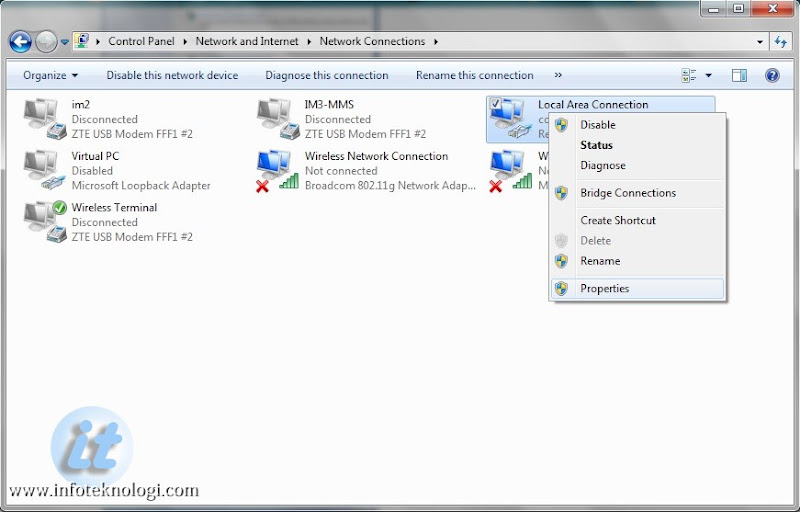
- Akan muncul daftar network adapter yang terinstall di komputer anda.
Pengguna internet di rumah dan kantor biasanya harus merubah setting Local Area Connection sedangkan pengguna Laptop/Notebook/Modem 3G akan menggunakan Wireless Network Connection. - Klik kanan Local Area Connection atau Wireless Network Connection dan pilih Properties.
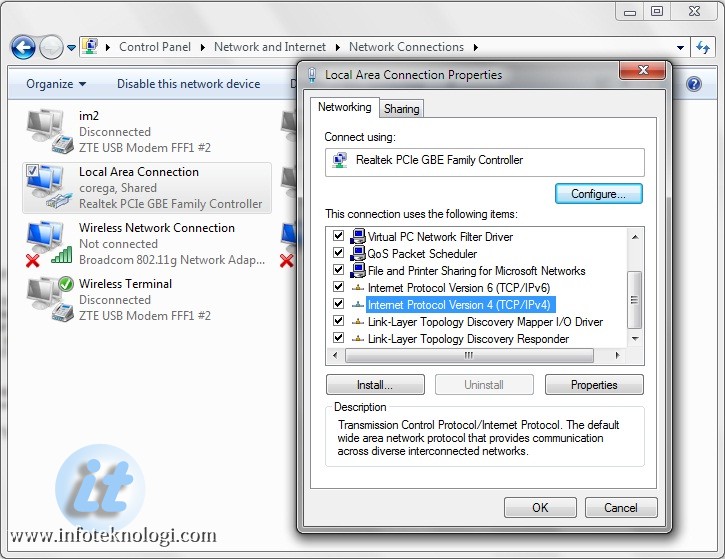
- Pilih Internet Protocol Version 4 (TCP/IPv4) dan klik tombol properties

- Isi kotak isian “Use the following DNS server Addresses”:
(Infoteknologi.com mengisinya dengan DNS dari Google, untuk DNS lain lihat di bagian akhir artikel)
Preferred DNS server: 8.8.8.8
Alternate DNS server: 8.8.4.4
Alternate DNS server: 8.8.4.4
- Tekan Tombol OK untuk menyimpan pengaturan DNS.
Untuk merubah Setting DNS Server di Windows XP
- Masuk ke Control Panel | Network Connections
- Klik kanan Adapter (Local Area Connection atau Wireless Network) lalu pilih Properties
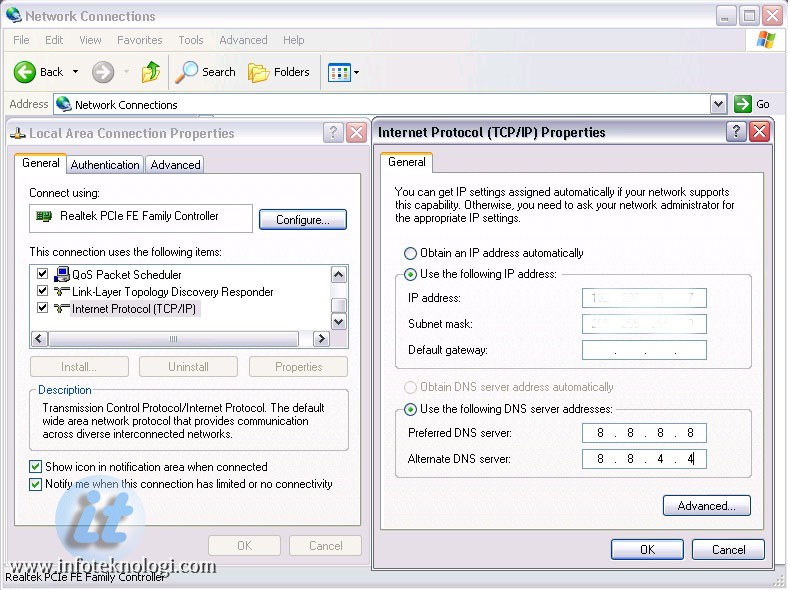
- Pilih Internet Protocol (TCP/IP) klik tombol Properties, lalu pada “Use the following DNS server Addresses” isikan Preferred dan Alternate DNS server dengan DNS Server Google atau OpenDNS.
- Simpan setting DNS dengan menekan tombol OK
Ada bermacam-macam DNS Server yang umum digunakan dan terbukti kecepatan dan keamanannya, berikut daftarnya:
| DNS Google (Google Public DNS) : | OpenDNS | DNS Nawala | Norton DNS |
| 8.8.8.8 | 208.67.222.222 | 180.131.144.144 | 198.153.192.10 |
| 8.8.4.4 | 208.67.220.220 | 180.131.145.145 | 198.153.194.10 |
| 208.67.222.220 | |||
| 208.67.220.222 |

No comments:
Post a Comment